e-Invoice Registration Guide
This section will guide you step-by-step on how to register and prepare your system for Malaysia e-Invoice using LHDN MyInvois. Even if you have never used e-Invoice before, you can follow this guide to set it up safely in the testing environment first.
01. What is e-Invoice & When You Need It
Effective from 1 January 2026, e-Invoice is required in Malaysia for certain transactions, especially those exceeding RM10,000.
In the mobile repair industry, it is uncommon to have repair transactions reaching this amount. However, if you serve corporate customers, company claims, or higher-value transactions, you may still need to submit e-Invoice.
Because of this, 3Warranty includes an e-Invoice module so that you can activate and use it whenever needed.
02. Understand Sandbox & Production
Before connecting your system, it is important to understand the two environments provided by MyInvois:
- Sandbox — testing environment
- Production — real live environment
The production environment sends real invoice data to LHDN, so it should only be used when you fully understand the submission process.
For first-time setup, always start with Sandbox. It is safe to test and learn without worrying about wrong submission data.
Go to: https://preprod-mytax.hasil.gov.my/
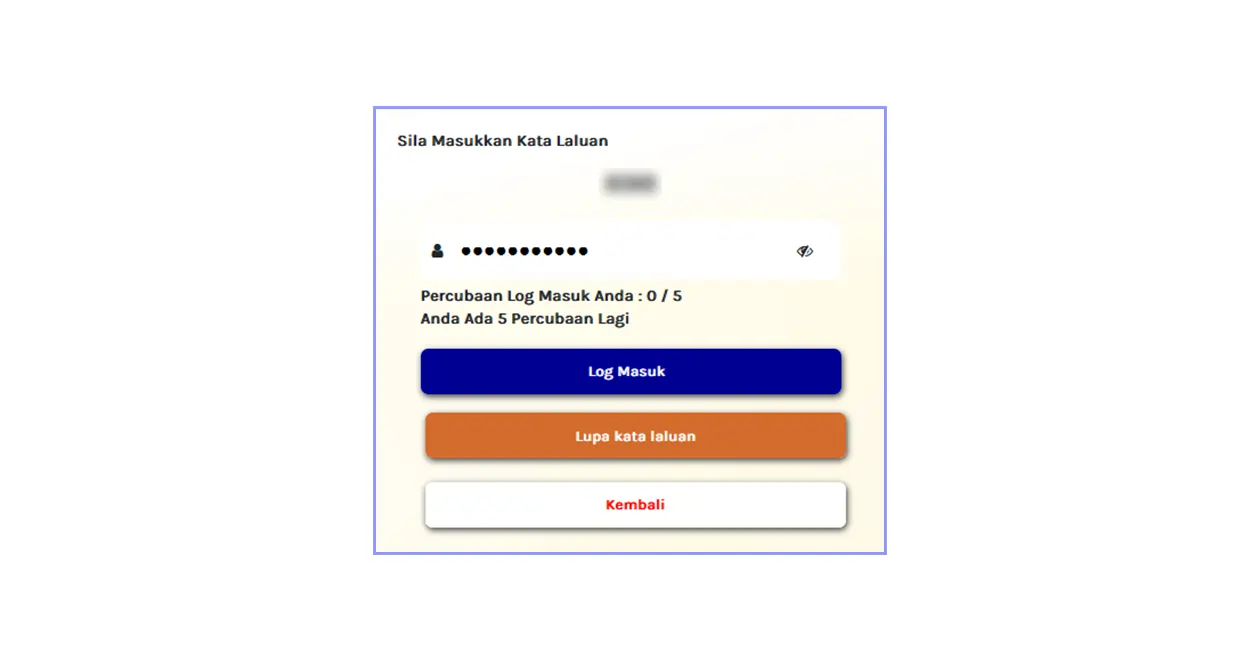
This is the sandbox (testing) environment. Register an account and sign in.
03. Enter MyInvois Portal
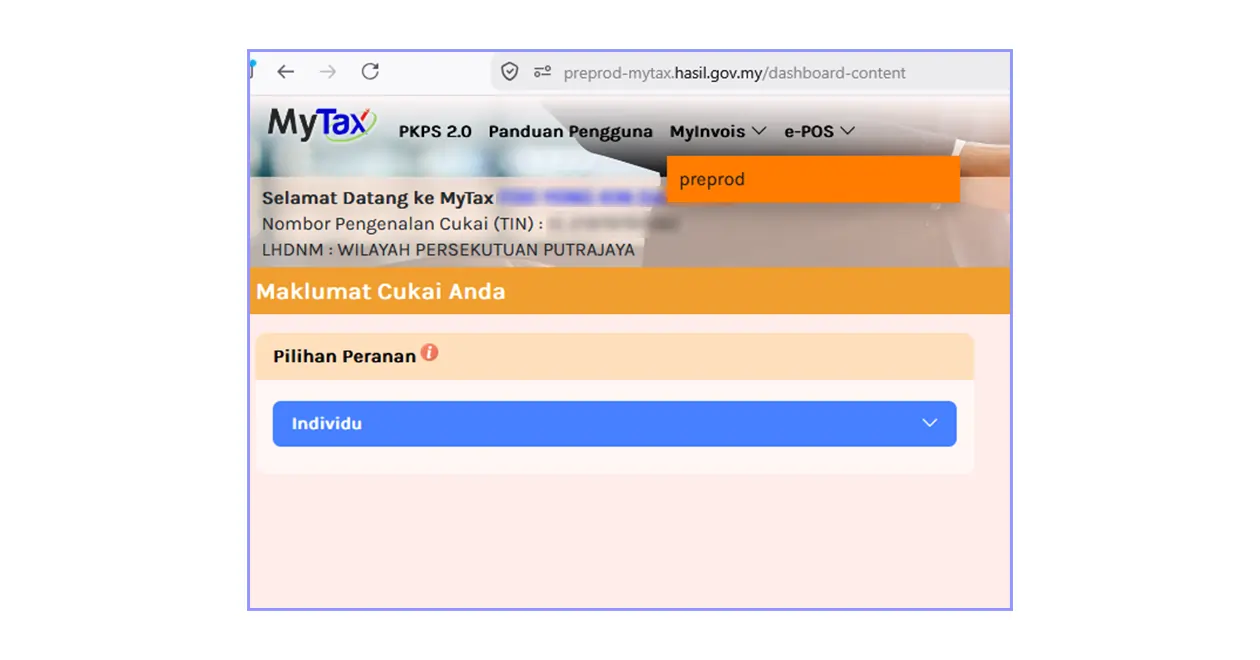
Once you are logged in, click on MyInvois from the top navigation bar and choose Preprod.
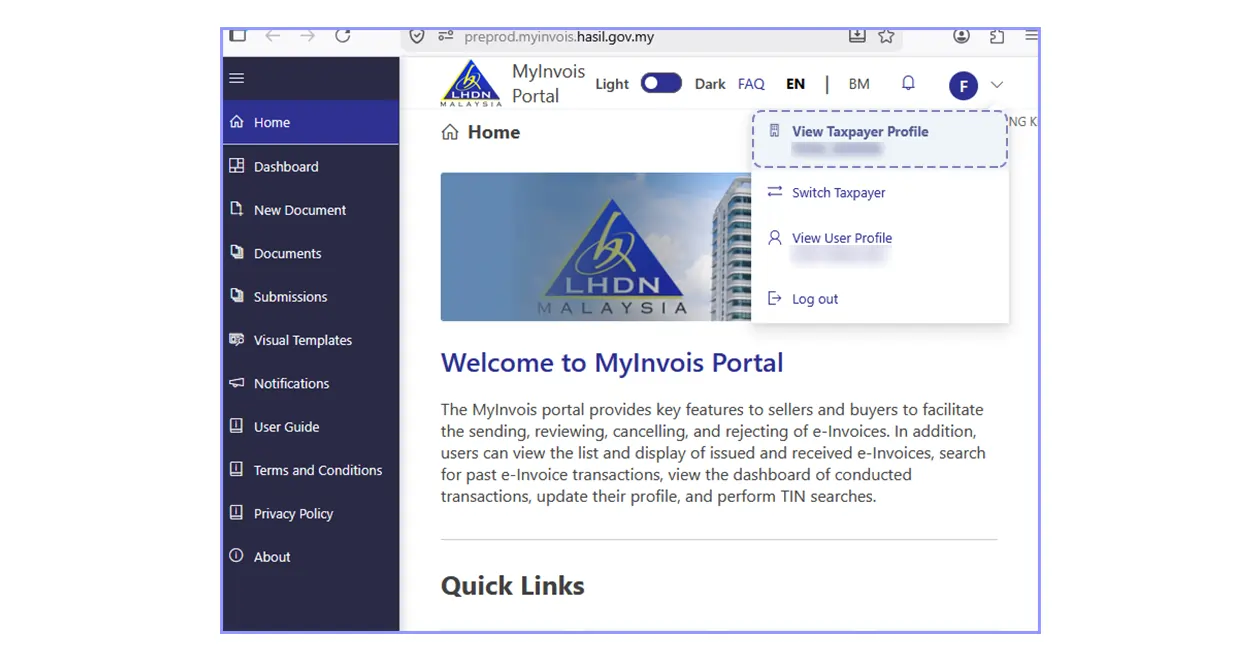
You will be redirected to the MyInvois portal. At the top right corner, click your profile and choose View Taxpayer Profile.
04. Register ERP
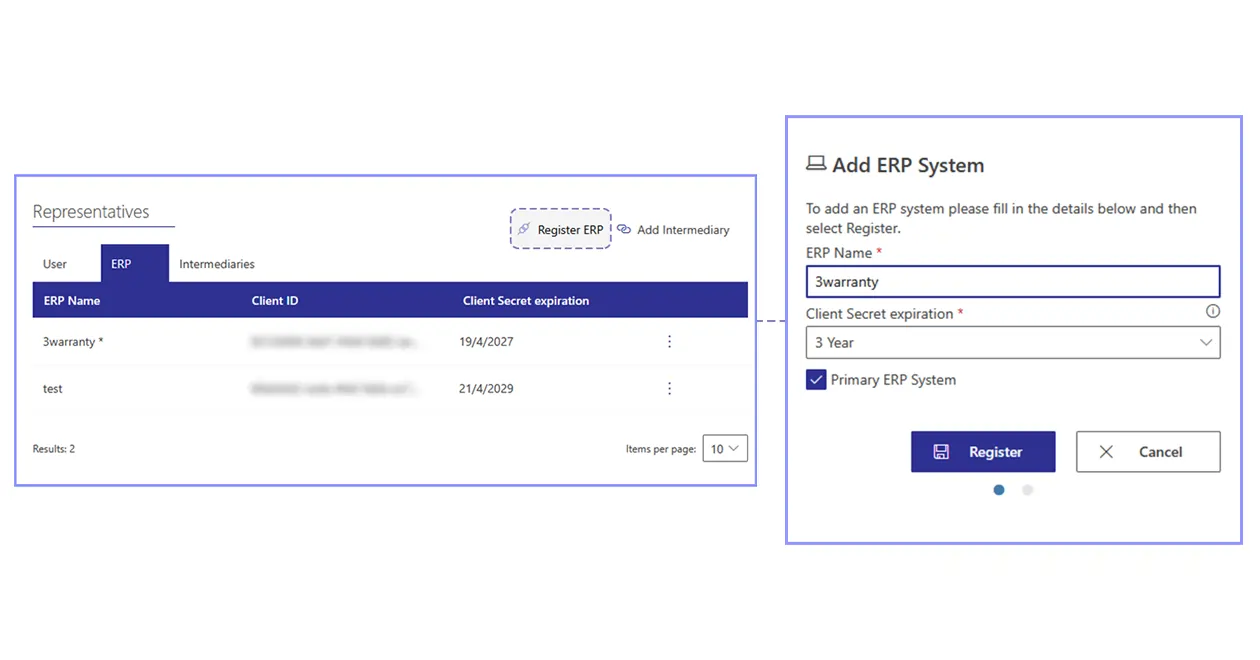
Scroll down to the Representatives section, find ERP, and click Register ERP.
Enter a simple ERP name such as 3Warranty, set the secret expiration to 3 years, and tick the option for Primary ERP System.
After registration, you will see:
- Client ID
- Client Secret 1
- Client Secret 2
Please copy and save these codes into your computer immediately.
Important: these codes are usually shown only once. If you lose them, you may need to delete the ERP registration and create it again.
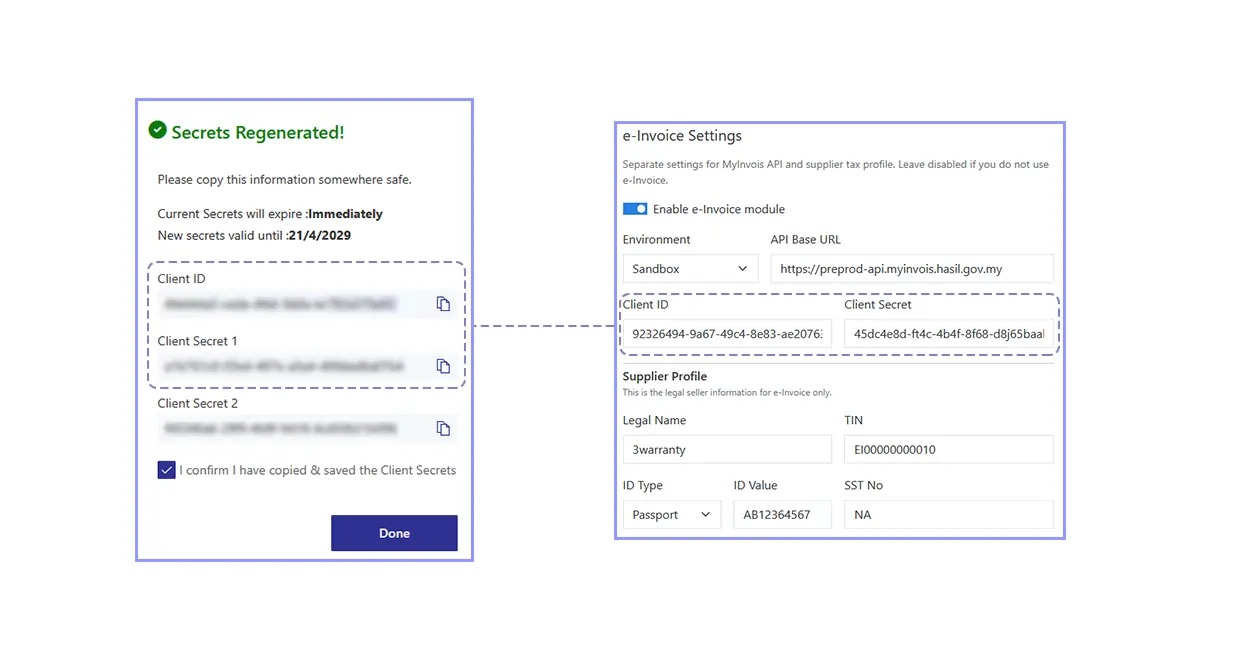
For now, you only need to use Client ID and Client Secret 1. Client Secret 2 is just a backup if needed later.
Once you have these credentials, you are done with MyInvois registration and can continue to connect it inside 3Warranty.