Setup Profile & Customise Page
This section helps you set up your invoice letterhead and customize your public warranty lookup page based on your business style and preference.
01. Setup Profile & Customise Page
Before using the system fully, you should configure your shop profile, invoice letterhead, and the public warranty lookup page.
These settings help make your system look more professional and match your business branding.
02. Invoice Letterhead
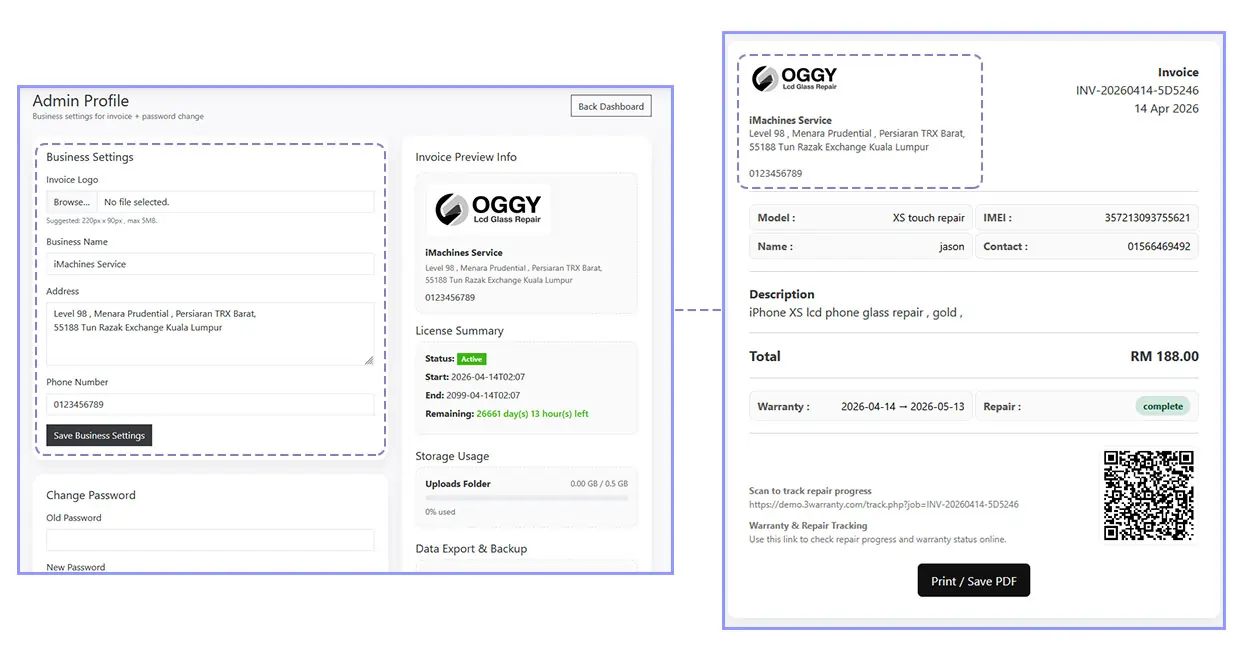
Go to Profile inside the admin panel. This page contains your business information used for the invoice letterhead.
You can upload your mobile repair shop logo or letterhead image here. The suggested image size is 220px × 90px.
You can also update your business name, business address, and phone number.
After making changes, click Save Business Settings.
Refresh the page afterward and you will see the updated information applied to your invoice layout.
03. Customise Warranty Lookup Page
This is the public display page for your website.
If you already have your own website, you may prefer Theme01 or Theme03, which use a more minimal design.
If you do not have a website yet, you may choose Theme02, which works like a mini website and lets you display your brand logo, address, and business information.
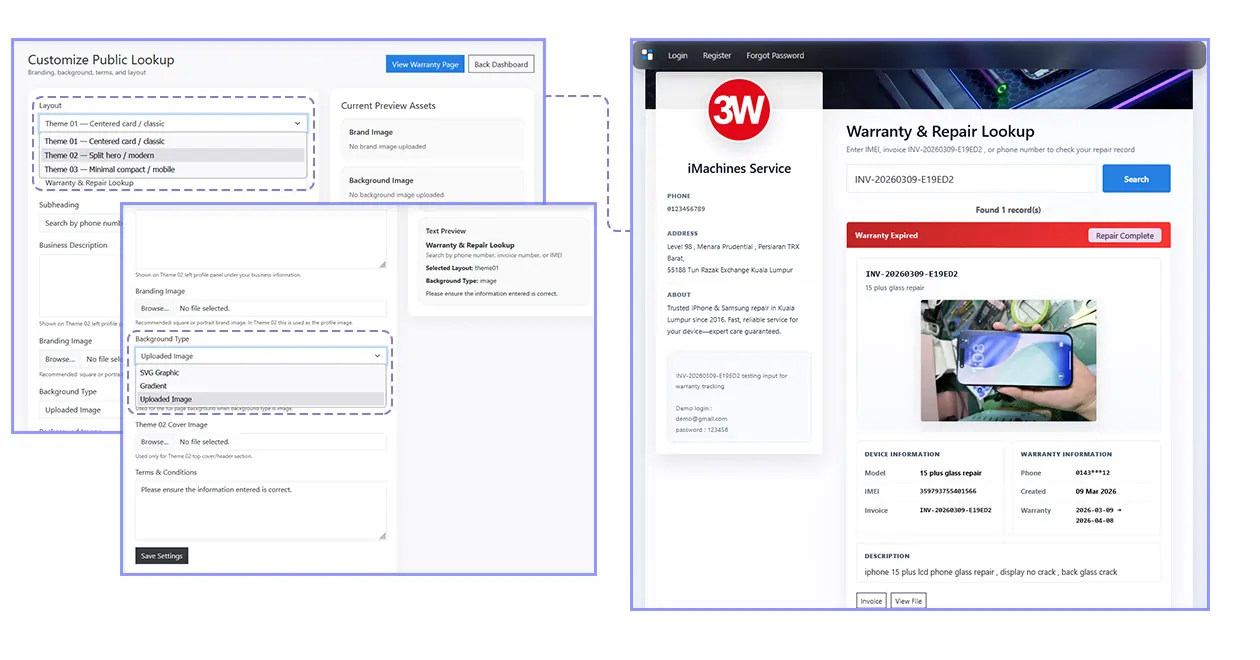
You can update the heading, subheading, and business description shown on the main warranty lookup page.
You can also upload your branding image or logo.
For the background type, the default option is SVG, which uses a simple graphic background. You may also choose Image and upload your own background image for the warranty page.
At the bottom, you can edit your Terms & Conditions for the public warranty page.
After that, click Save Settings and check your main lookup page to see the changes take effect: shopname.efix.my